




The Ultimate Guide to Camera Firmware Updates: Boost Performance & Fix Bugs
Imagine buying a brand new camera, excited to capture stunning photos and videos, only to find that it lags, misfocuses, or is missing key features you thought it would have. Frustrating, right? Many photographers and videographers don’t realize that the solution to these problems often lies in something simple: a camera firmware update. These updates are essentially software patches that can dramatically improve your camera’s performance, fix annoying bugs, and even unlock entirely new capabilities.
Think of it like this: your camera’s hardware is the body, and the firmware is the brain. If the brain isn’t up-to-date, the body won’t function at its best. Ignoring firmware updates is like driving a high-performance sports car with outdated engine software. You’re missing out on a huge amount of potential!
This guide will walk you through everything you need to know about camera firmware updates, from understanding what they are and why they’re important, to finding, installing, and troubleshooting them. By the end of this article, you’ll be equipped to keep your camera running smoothly and take full advantage of its capabilities. Here’s what we’ll cover:
- Understanding what camera firmware is and why it matters.
- Identifying when a firmware update is available for your camera.
- Step-by-step instructions on how to safely install firmware updates.
- Troubleshooting common firmware update issues.
- Exploring the benefits of firmware updates through real-world examples.
What is Camera Firmware and Why Does it Matter?
Camera firmware is the embedded software that controls the internal operations of your camera. It’s the operating system that dictates how the camera functions, from autofocus and image processing to menu navigation and connectivity. Unlike traditional software you install on a computer, camera firmware is pre-installed by the manufacturer and designed specifically for the camera’s hardware.
Why does it matter? Because firmware is constantly evolving. Manufacturers regularly release updates to address bugs, improve performance, and add new features that weren’t available when the camera was first released. Think of it as ongoing optimization for your camera. Failing to update your camera’s firmware is like ignoring critical software updates on your phone or computer – you’re leaving yourself vulnerable to problems and missing out on valuable improvements. A well-maintained firmware ensures optimal performance and extends the lifespan of your camera.
Benefits of Keeping Your Firmware Up-to-Date
Here’s a closer look at the specific advantages you’ll gain from regularly updating your camera’s firmware:
- Bug Fixes: Firmware updates often address glitches or bugs that were discovered after the camera was released. These can range from minor annoyances to serious issues that affect the camera’s functionality. For example, a firmware update might fix a bug that causes the camera to freeze or crash under certain conditions.
- Improved Performance: Updates can optimize the camera’s performance, leading to faster autofocus, improved image processing, and smoother operation. Think snappier responsiveness when navigating menus or quicker write speeds to your memory card.
- New Features: Manufacturers sometimes add entirely new features to existing cameras through firmware updates. This could include new video recording modes, improved autofocus algorithms, or compatibility with new accessories.
- Enhanced Compatibility: Updates can ensure compatibility with newer lenses, memory cards, and other accessories. This is especially important as technology continues to evolve.
- Security Updates: Although less common, some firmware updates address security vulnerabilities, protecting your camera from potential exploits. This is becoming increasingly important as cameras become more connected.
Ignoring these updates means potentially missing out on significant improvements and leaving your camera vulnerable to known issues. Imagine missing out on a crucial autofocus upgrade that would have helped you nail a once-in-a-lifetime shot. That’s the kind of opportunity cost we’re talking about.
The Risks of Outdated Firmware
Sticking with outdated camera firmware isn’t just about missing out on benefits; it can also expose you to several risks:
- Unresolved Bugs: You’ll continue to experience any bugs that have already been identified and fixed in newer firmware versions.
- Performance Issues: Your camera may not be performing at its optimal level, leading to slower autofocus, poorer image quality, or other problems.
- Incompatibility: You might encounter compatibility issues with newer lenses, memory cards, or accessories.
- Security Vulnerabilities: Although rare, outdated firmware could leave your camera vulnerable to security exploits.
Think of it as driving a car with worn-out tires. You can still drive it, but you’re increasing your risk of an accident and you’re not getting the best possible performance. Updating your camera’s firmware is like putting on new tires – it improves handling, safety, and overall performance.
How to Check for Camera Firmware Updates
The process for checking for camera firmware updates varies slightly depending on the camera manufacturer and model. However, the general steps are usually similar. Most manufacturers offer multiple ways to find available updates – through the camera’s menu system, desktop software, or their website.
Checking Through the Camera’s Menu
Many cameras have a built-in function that allows you to check for firmware updates directly through the menu system. Here’s a general guide (consult your camera’s manual for specific instructions):
- Power on your camera.
- Navigate to the menu system. Look for options like “Setup,” “Settings,” “Maintenance,” or “Version Info.”
- Find the “Firmware Version” or “Software Version” option. This will display the current firmware version installed on your camera.
- Look for an option to “Check for Updates” or “Update Firmware.” If your camera has this feature, it will automatically connect to the manufacturer’s server and check for available updates.
If an update is available, the camera will usually prompt you to download and install it. Follow the on-screen instructions carefully. We’ll cover the installation process in more detail later.
Using Desktop Software
Most major camera manufacturers provide desktop software that can be used to manage your camera, download photos and videos, and update the firmware. Examples include Canon’s EOS Utility, Nikon’s NX Studio, and Sony’s Imaging Edge Desktop.
Here’s how to check for updates using desktop software:
- Download and install the appropriate software from your camera manufacturer’s website.
- Connect your camera to your computer using a USB cable.
- Launch the desktop software.
- The software should automatically detect your camera. If not, you may need to select your camera model from a list.
- Look for an option to “Update Firmware,” “Check for Updates,” or similar. The software will then connect to the manufacturer’s server and check for available updates.
The software will typically guide you through the download and installation process. Make sure to follow the instructions carefully.
Visiting the Manufacturer’s Website
You can also check for firmware updates directly on the manufacturer’s website. This is a good option if you don’t want to install desktop software or if you’re having trouble connecting your camera to your computer.
- Visit the website of your camera manufacturer. (e.g., Canon, Nikon, Sony, Fujifilm, Olympus, Panasonic, etc.)
- Navigate to the “Support” or “Downloads” section.
- Search for your camera model.
- Look for “Firmware Updates” or “Software Updates.”
- Download the latest firmware version for your camera model.
The website will usually provide detailed instructions on how to install the firmware update. This typically involves downloading the firmware file to your computer, copying it to a memory card, and then installing it through the camera’s menu system. We’ll cover this process in the next section.
Step-by-Step Guide to Installing Camera Firmware Updates
Installing camera firmware updates can seem daunting, but it’s usually a straightforward process. However, it’s crucial to follow the instructions carefully to avoid damaging your camera. Always refer to your camera’s manual for the most accurate and up-to-date instructions.
Preparation: Before You Begin
Before you start the firmware update process, it’s essential to take a few precautions:
- Charge your camera’s battery fully. A dead battery during the update process can brick your camera. Ideally, use a fully charged battery or connect your camera to a power adapter.
- Use a reliable memory card. A faulty memory card can also cause problems during the update. Use a memory card that is known to be compatible with your camera and is in good working order. Format the card in your camera before use.
- Download the correct firmware version. Make sure you download the firmware version that is specifically designed for your camera model. Installing the wrong firmware can damage your camera. Double-check the model number and firmware version before proceeding.
- Read the instructions carefully. Manufacturers provide detailed instructions for installing firmware updates. Read them thoroughly before you begin. Pay attention to any warnings or cautions.
- Back up your camera settings. Some updates may reset your camera settings to their default values. Backing up your settings will allow you to restore them after the update is complete.
Treat this like a surgical procedure for your camera. Preparation is paramount!
Installing the Firmware Update
Here are the general steps for installing a camera firmware update (refer to your camera’s manual for specific instructions):
- Format the memory card in your camera. This ensures that the card is clean and free of any potential conflicts.
- Copy the firmware file to the memory card. Connect your memory card to your computer and copy the firmware file (usually a .BIN or .FIR file) to the root directory of the card. Do not place the file in a folder.
- Insert the memory card into your camera.
- Power on your camera.
- Navigate to the “Firmware Update” option in your camera’s menu. The location of this option varies depending on the camera model. Refer to your camera’s manual.
- Select the firmware file on the memory card. The camera will usually display a list of files on the memory card. Select the firmware file you copied in step 2.
- Confirm that you want to install the update. The camera will usually display a warning message before proceeding. Read the message carefully and confirm that you want to install the update.
- Wait for the update to complete. The camera will display a progress bar during the update process. Do not turn off the camera or remove the memory card during the update. This could damage your camera.
- Restart your camera. Once the update is complete, the camera will usually restart automatically. If not, turn the camera off and then back on.
- Verify the firmware version. Check the firmware version in the camera’s menu to confirm that the update was installed successfully.
Remember, patience is key! Do not rush the process, and do not interrupt the camera while it is updating.
Post-Installation Steps
After the firmware update is complete, there are a few things you should do:
- Reset your camera settings (if necessary). If the update reset your camera settings to their default values, restore them from your backup.
- Test your camera. Take some test shots and videos to make sure everything is working as expected. Pay attention to any new features or performance improvements that were included in the update.
- Format the memory card. Once you’ve verified that the update was installed successfully and that your camera is working properly, format the memory card in your camera to remove the firmware file.
Troubleshooting Common Firmware Update Issues
While firmware updates are generally straightforward, you might encounter problems. Here are some common issues and how to troubleshoot them:
- Camera won’t recognize the firmware file.
- Make sure you downloaded the correct firmware version for your camera model.
- Make sure the firmware file is in the root directory of the memory card (not in a folder).
- Make sure the memory card is formatted in your camera.
- Try using a different memory card.
- Firmware update fails to install.
- Make sure your camera’s battery is fully charged.
- Make sure you are using a reliable memory card.
- Try downloading the firmware file again.
- Contact the camera manufacturer’s support team for assistance.
- Camera is bricked (unresponsive) after the update.
- This is a serious issue. Try contacting the camera manufacturer’s support team immediately. They may be able to provide instructions for recovering the camera. Do not attempt to fix this yourself unless you are very technically skilled.
Prevention is better than cure. That’s why it’s so important to follow the preparation steps carefully.
Case Studies: Real-World Examples of Firmware Update Benefits
Let’s look at some real-world examples of how firmware updates have benefited photographers and videographers:
- Sony a7III: Early versions of the Sony a7III had issues with autofocus performance, particularly in low light. A firmware update significantly improved the autofocus algorithm, making it faster and more accurate. This was a game-changer for wedding photographers and videographers who often work in challenging lighting conditions.
- Fujifilm X-T4: Fujifilm is known for regularly adding new features to its cameras through firmware updates. For the X-T4, updates have added new film simulation modes, improved autofocus performance, and enhanced video recording capabilities. This demonstrates the ongoing value that firmware updates can provide.
- Nikon Z6/Z7: Nikon addressed several performance issues and added new features to the Z6 and Z7 mirrorless cameras through a series of firmware updates. These included improved eye-detection autofocus, support for CFexpress memory cards, and enhanced video recording options. These updates helped to solidify the Z6 and Z7 as serious contenders in the mirrorless market.
These are just a few examples of how firmware updates can make a real difference in the performance and functionality of your camera. They demonstrate that manufacturers are committed to improving their products even after they have been released.
When to Update: Developing a Firmware Update Strategy
So, how often should you check for and install camera firmware updates? Here’s a suggested strategy:
- Check regularly (every 1-2 months). Make it a habit to check your camera manufacturer’s website or desktop software for updates every month or two.
- Read the release notes carefully. Before installing an update, read the release notes to understand what changes are included. This will help you determine if the update is relevant to your needs.
- Don’t update immediately. Unless the update addresses a critical bug or security vulnerability, consider waiting a few days or weeks to see if other users report any problems.
- Prioritize updates that address bugs or performance issues. These updates are generally the most important to install.
- Consider updates that add new features. If the update includes a new feature that you’re interested in, give it a try.
- If in doubt, wait. If you’re not sure whether to install an update, it’s usually better to wait. You can always install it later.
Think of it like managing your computer’s operating system. Regular updates are important, but it’s also wise to be cautious and avoid installing updates that might cause problems.
FAQ: Camera Firmware Updates
What is camera firmware?
Camera firmware is the embedded software that controls your camera’s functions, from autofocus to image processing. It’s like the operating system for your camera’s hardware, and updates improve performance, fix bugs, and add new features.
Why should I update my camera’s firmware?
Updating your camera’s firmware ensures you have the latest bug fixes, performance improvements, and new features. Outdated firmware can lead to compatibility issues, performance problems, and missed opportunities.
How do I find firmware updates for my camera?
You can find firmware updates on the camera manufacturer’s website, through the camera’s menu system (if supported), or via the manufacturer’s desktop software. Always download updates from official sources.
How do I install a camera firmware update?
The process usually involves downloading the firmware file, copying it to a formatted memory card, inserting the card into the camera, and then selecting the “Firmware Update” option in the camera’s menu. Refer to your camera’s manual for specific instructions.
What happens if a firmware update fails?
A failed firmware update can sometimes brick your camera, rendering it unusable. To minimize this risk, ensure your battery is fully charged, use a reliable memory card, and follow the instructions carefully. If it fails, contact the manufacturer’s support team.
How often should I check for camera firmware updates?
It’s a good practice to check for firmware updates every 1-2 months. However, prioritize updates that address critical bugs or performance issues. Read the release notes before installing any update.
Can firmware updates add new features to my camera?
Yes! Many manufacturers add new features to existing cameras through firmware updates. These can include new video recording modes, improved autofocus algorithms, or enhanced connectivity options.
Conclusion: Unlock Your Camera’s Full Potential
As you’ve learned, camera firmware updates are a crucial part of maintaining and maximizing the performance of your camera. By staying up-to-date with the latest firmware, you can ensure that you’re taking full advantage of your camera’s capabilities, fixing annoying bugs, and even unlocking entirely new features. Don’t let outdated firmware hold you back. Make firmware updates a regular part of your camera maintenance routine.
Now that you understand the importance of camera firmware updates, the next step is to check for updates for your own camera and install them if available. Remember to follow the instructions carefully and take the necessary precautions to avoid any problems. Your camera (and your photos!) will thank you for it.
Ready to dive deeper into camera optimization? Check out our guide to understanding camera lenses and learn how to choose the perfect lens for your photography style. Or, if you’re looking to improve your post-processing skills, read our article on mastering Adobe Lightroom.
Content Disclaimer
The information provided in this article is for educational purposes only. We are not responsible for any damages that may occur as a result of following the instructions in this article. Always refer to your camera’s manual for specific instructions and precautions.
Categories
- 3D Printer (517)
- Automatic Mugs (426)
- Cleaning Appliances (504)
- Electric Bikes (214)
- Electric Scooters (456)
- Electronic Gadgets (183)
Archives
About Team Ibuyem
View all posts by Team IbuyemProduct Gallery
-
Meian Smart Home Doorbell Wireless Security Doorbell IP65 Waterproof Outdoor Door Bell 60 Songs 5 Volume Adjustable Chime Kit
Rated 4.79 out of 5$9.07 – $20.33Price range: $9.07 through $20.33
-
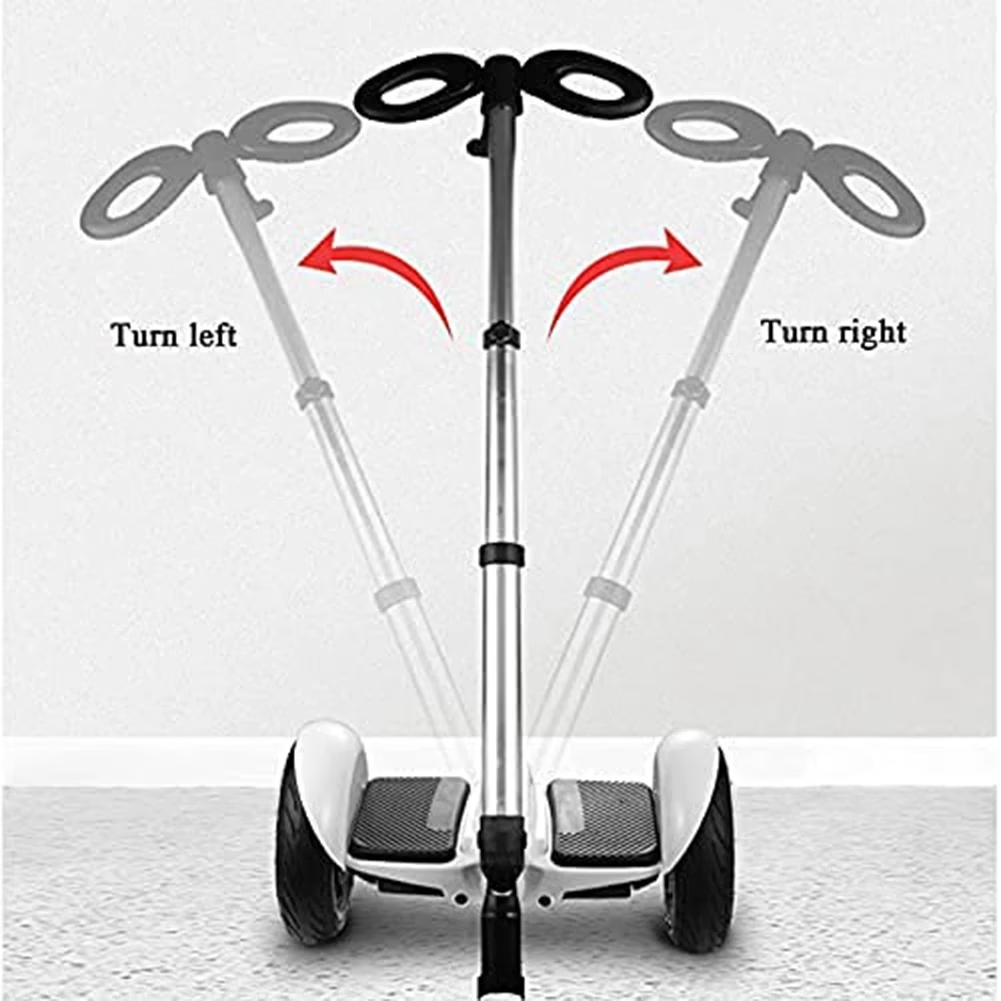 ABHS-Handlebar Suitable For Segway Ninebot Minipro Minilite Hoverboard Adjustable Three-In-One Function Pressure Handle
$43.81
ABHS-Handlebar Suitable For Segway Ninebot Minipro Minilite Hoverboard Adjustable Three-In-One Function Pressure Handle
$43.81
-
 Modern Fashion 2 Wheel Smart Aluminum Hooverboard Self Balancing Scooter Kids Adults Electric Balance Scoter
$231.02
Modern Fashion 2 Wheel Smart Aluminum Hooverboard Self Balancing Scooter Kids Adults Electric Balance Scoter
$231.02


 Robot Vacuums
 Steam Cleaner
 Window Robots
 Self Stirring Mugs
 Self Heating Mugs
 Air Purifier
 Dehumidifier
 Diffuser
 Humidifier
 Panoramic Camera
 Solar Camera
 Window Door Sensor
 Baby Monitor
 Small Cameras
 Electric Bike
 Electric Bike Motor
 Electric Scooter
 Electric Skateboard
 Hoverboard
 3D Printers
 3D Printer Filament

Recent Comments